
- Contact SHINING 3D Metrology Support and provide the serial numbers of your FreeProbe 2 and Probe Calibrator. Photos of the serial number labels are recommended.
- SHINING 3D Support will send you two files, as shown below.

- Download both files. Rename the file ending in
ProbeCalibrator.ascby removing the prefixFreeScanFPB-YEABFXXXXXX_, as shown below.
- Copy the two files from Step 3 to the following folder:
C:\Program Files\Shining3d\FreeTrak_TRAK\res\FreeScanTrak - Locate
ProbeConfigTool.exein the folderC:\Program Files\Shining3d\FreeTrak_TRAK, then double-click it to launch the tool:
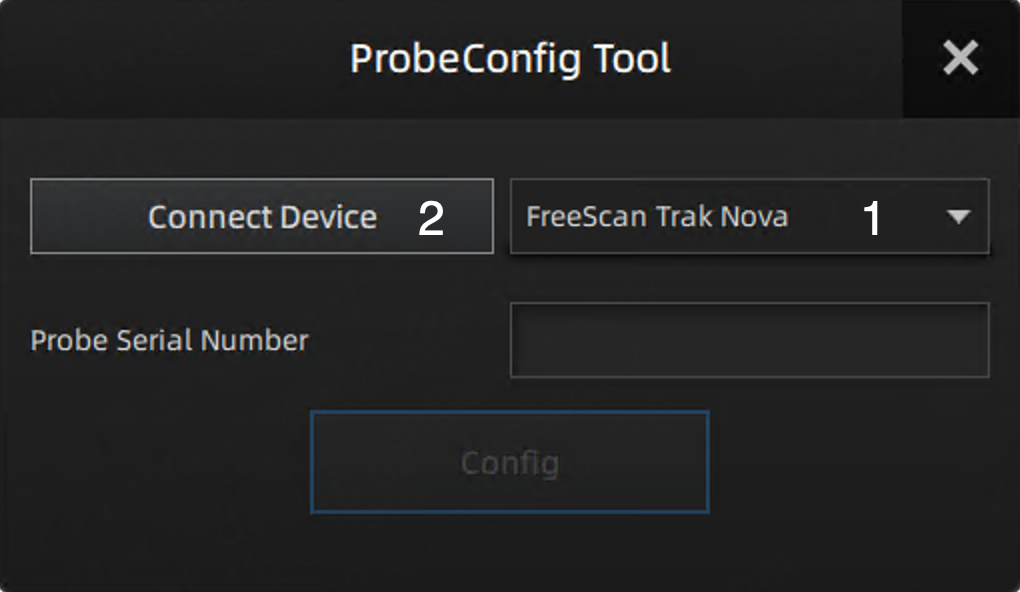
- Select the correct scanner model and click Connect Device. Make sure the FreeTrak system is connected via either a wired or wireless connection.
- Enter the FreeProbe serial number. The format must exactly match the serial number on the product label. It is recommended to copy it directly from the
FreeScanFPB-YEABFXXXXXX_ProbeCalibrator.ascfile.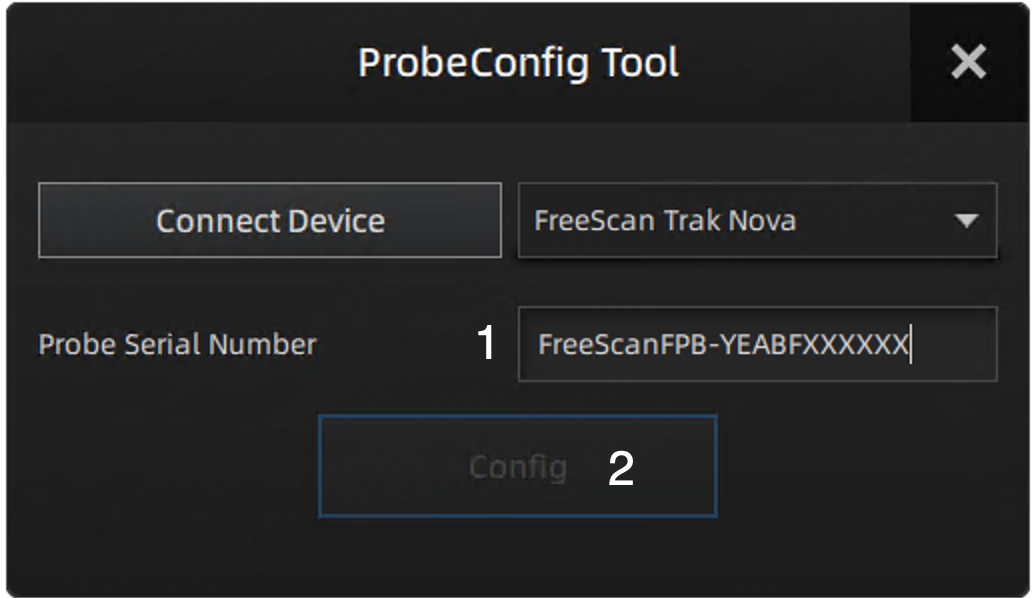
- Click Config. Once the configuration is complete, a confirmation message will appear indicating that the configuration was successful.