
Users may experience FreeScan / EXScan / OptimScan software prompting
"Insufficient Memory" while scanning.
This is usually caused by low or nearly full system memory (RAM).
When this prompt appears, you may also encounter the following related
problems:
- Unable to continue scanning;
- Unable to open project with original resolution; forced downsampling is required to load the project successfully;
- Software crashes or computer blue screen (BSOD) when opening projects;
- Mesh Processing / Optimization requires larger resolution;
- Software crashes during Mesh & Mesh Editing.
Solution: Adjust Virtual Memory
Virtual memory uses part of your hard drive as spare system memory
when physical RAM runs low. Setting it to twice your physical RAM can fix
the Insufficient Memory issue in the scanning software.
Below is the setup guide for Windows 10/11.
Step 1 Check Your Physical Memory (RAM) Size

2. Select System from the right-click pop-up menu.
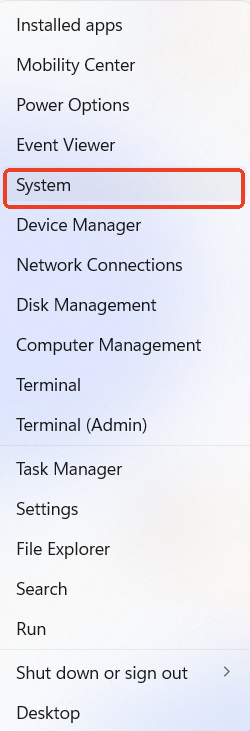
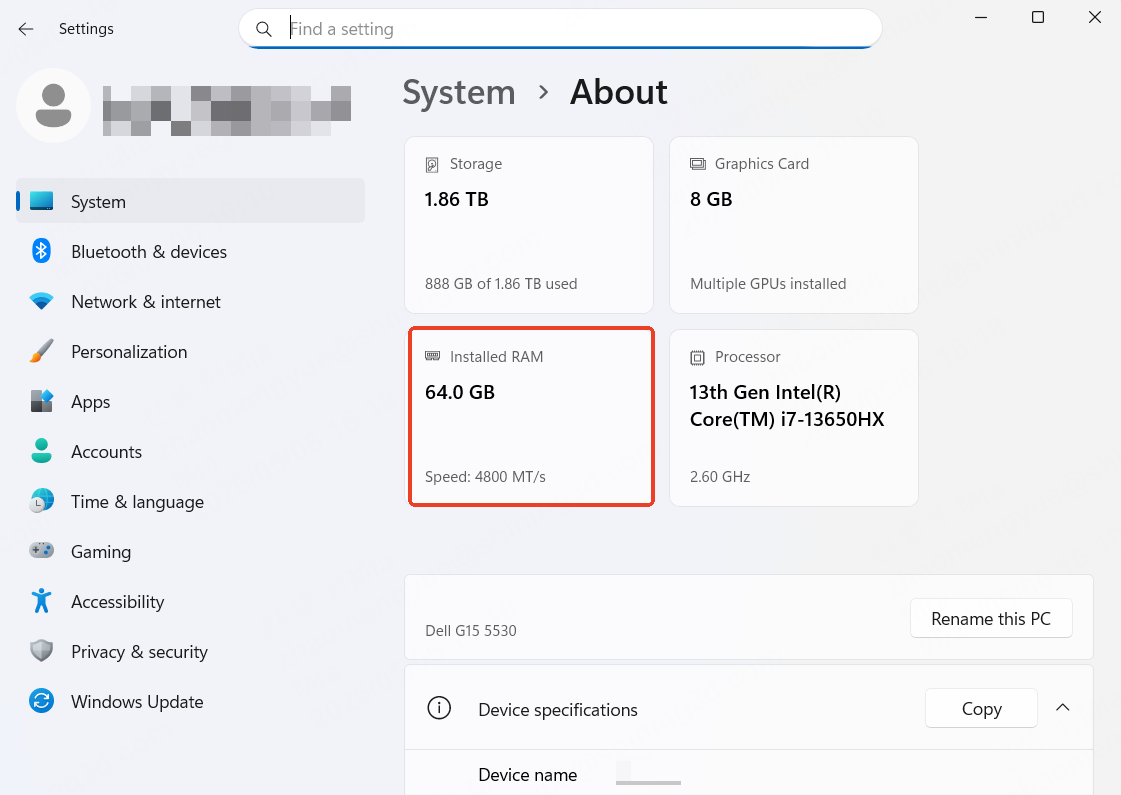
3. Find the "Installed RAM" to check your physical memory capacity.
Step 2: Access Virtual Memory Settings Panel
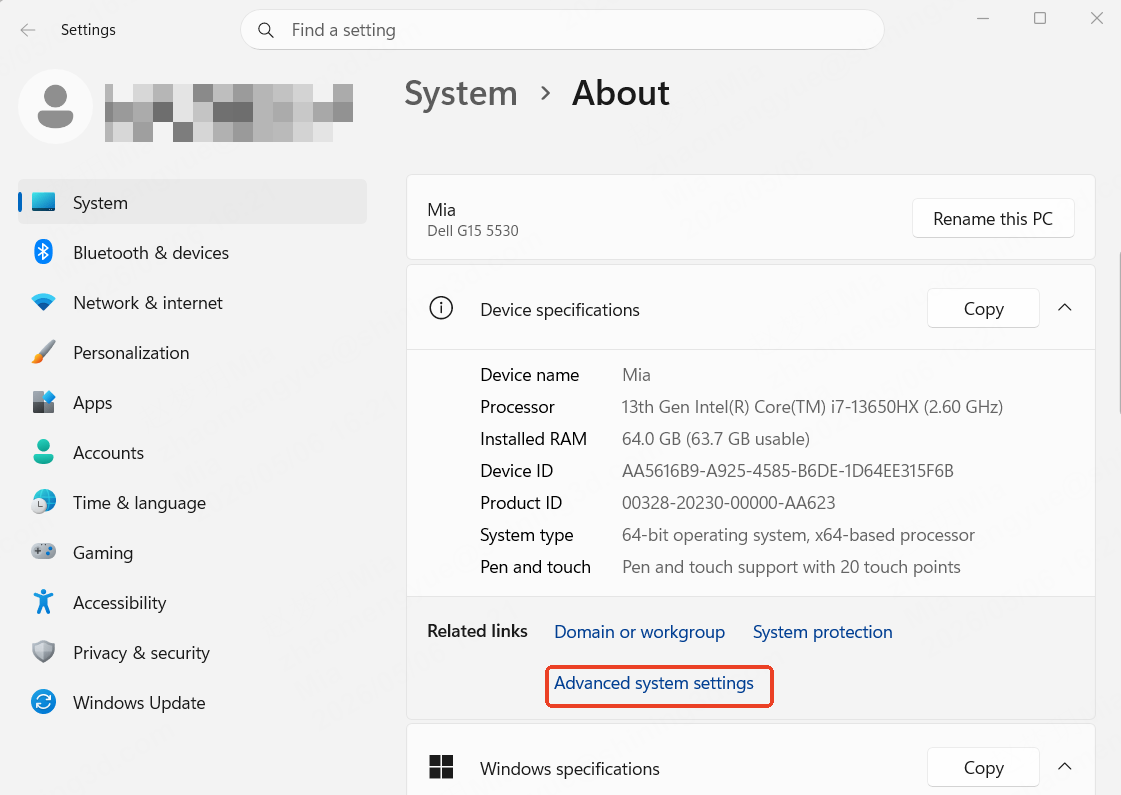
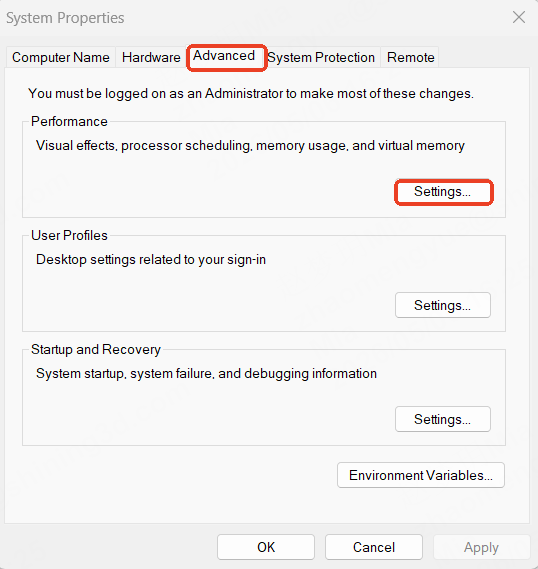
2. In the pop-up "System Properties" window, switch to the Advanced tab, then click Settings under the "Performance" category.
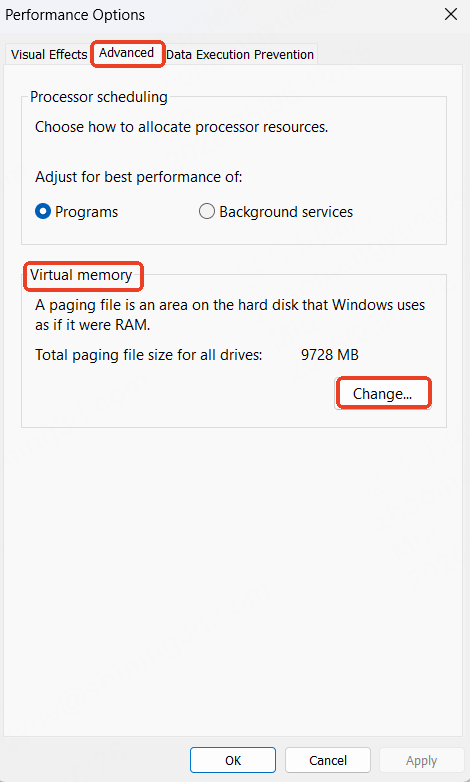
3. In the "Performance Options" window, go to the Advanced tab, then click Change under the "Virtual Memory" section.
Step 3: Configure Virtual Memory
(C drive is usually smaller and may have permission issues for it's the system drive, but if you only have C drive, then selecting C drive is also acceptable.)
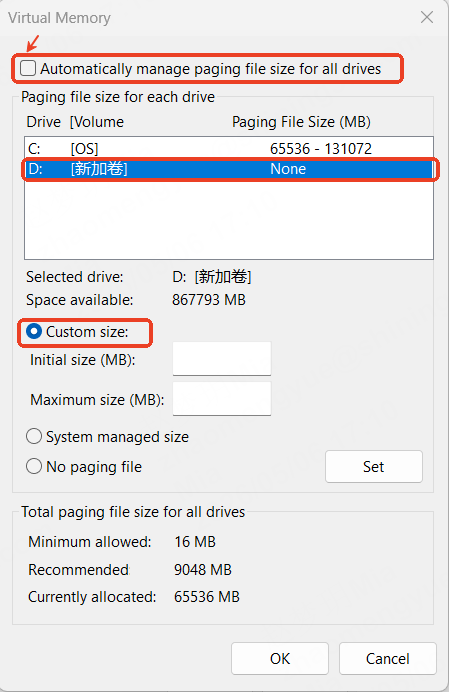
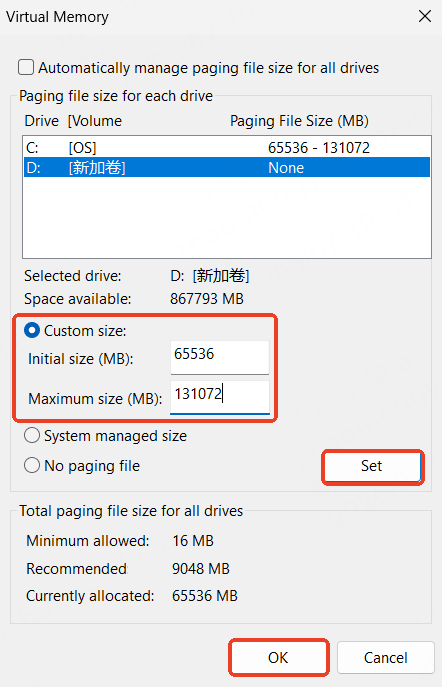
4. Click Set (this step is mandatory to save the configuration), then click OK to close all setting windows in sequence.
Step 4: Restart Your Computer
Restart your computer to activate the new virtual memory settings.
After rebooting, insufficient memory and related issues will be significantly
relieved.
Supplementary Tips:
Adjusting virtual memory is an effective solution for persistent Insufficient Memory
issues. For long-term stable and high-efficiency scanning, upgrading physical RAM is
the most fundamental method.
If you experience any issues or need further assistance, please feel free to contact us at metrology_support@shining3d.com and we will get back to you as soon as possible.
Hope you enjoy SHINING 3D product!