
If you have already an activation license, but it fails to activate QUICKSURFACE, there might be several reasons for this:
- You received wrong activation code
- There is no internet connection to QUICKSURFACE activation server
- Your antivirus program or firewall settings blocks the connection
- You have not deactivated the software on your old PC
In this case, your software can be activated using ‘offline activation’
Request an offline license
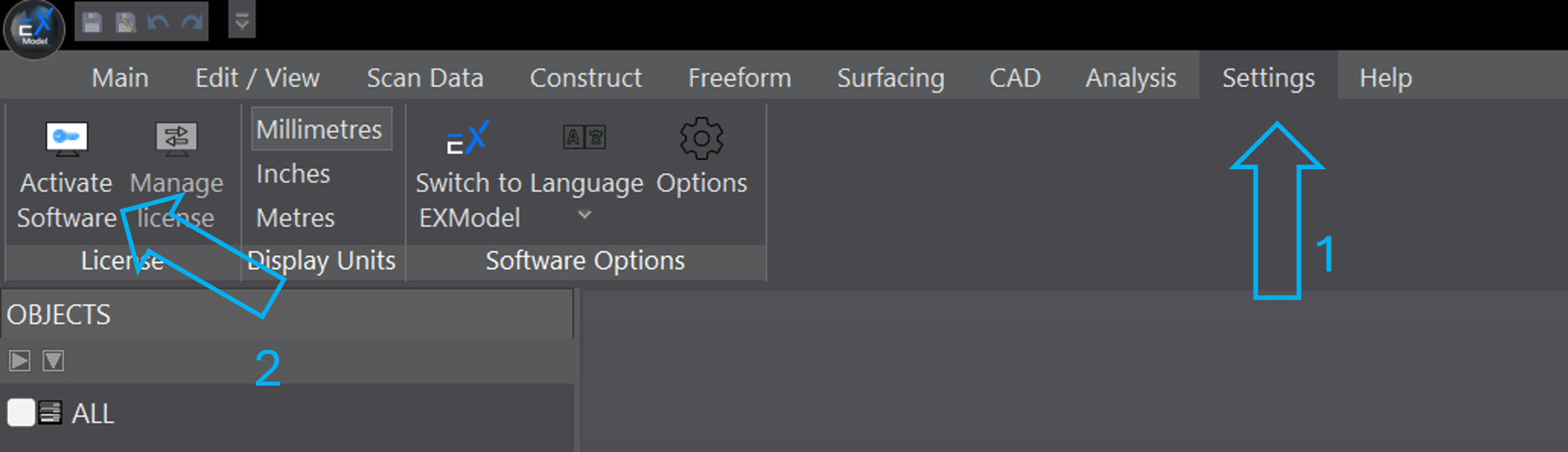
1. Start EXModel and select 'Settings / Activate Software' from the main menu
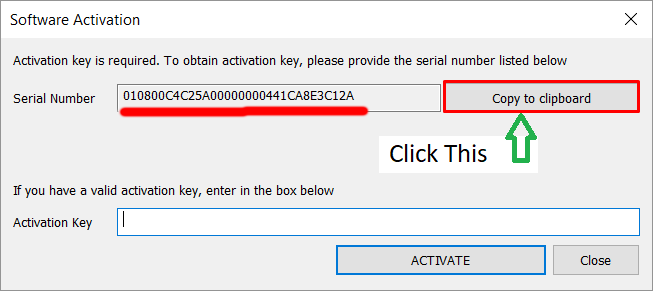
2. Click on 'Copy to Clipboard' button (as seen in the image) and then click on 'Close' button to close the dialog
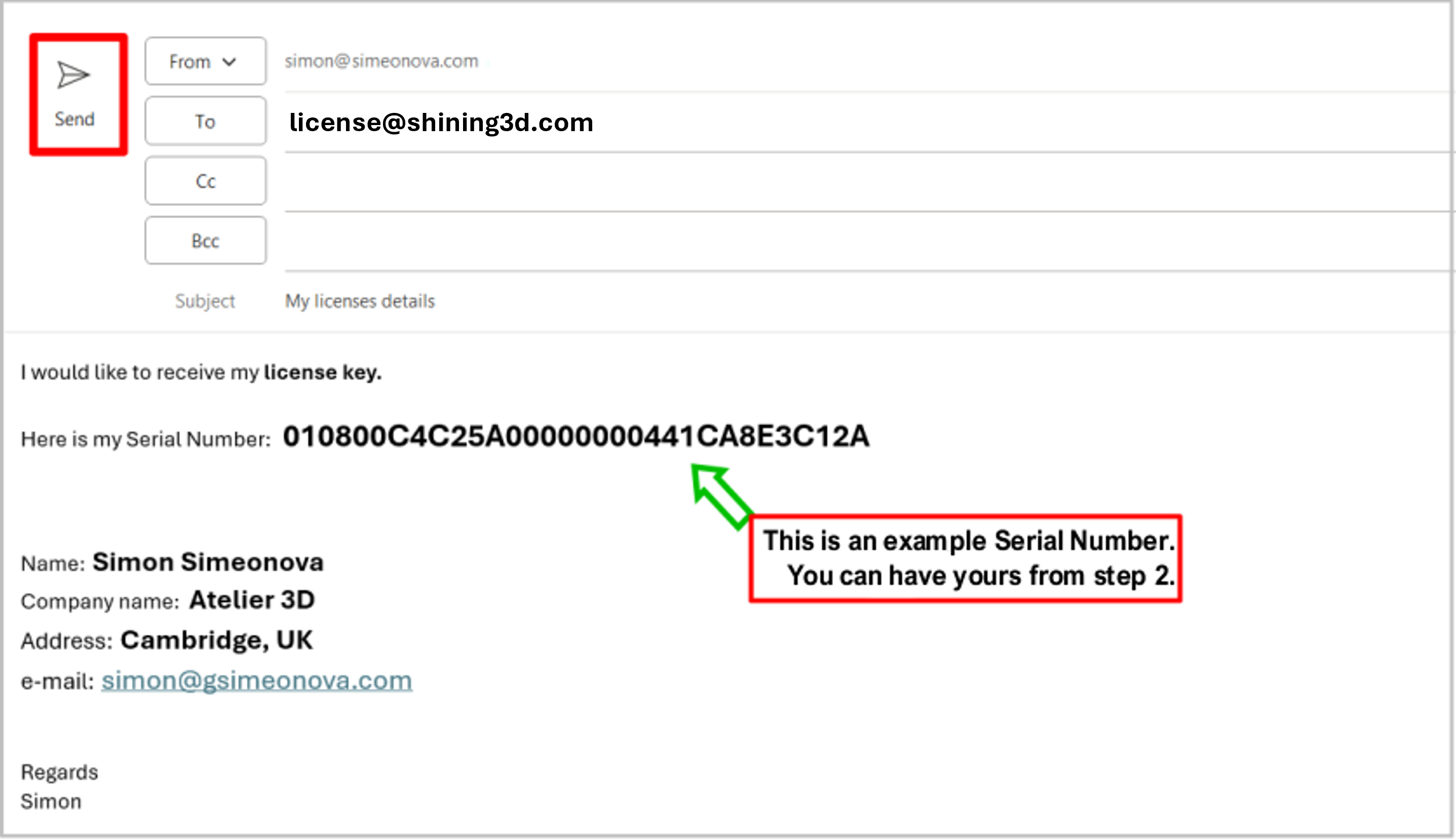
3. Open your e-mail client and then
- Create a new message license@shining3d.com
- Paste the Serial Number, that you’ve just copied from EXModel (see step 2).
- Provide your Name, Company name & Contact details.
- If you are an existing customer, please specify in the e-mail “I am an existing cutomer”
- Click SEND.
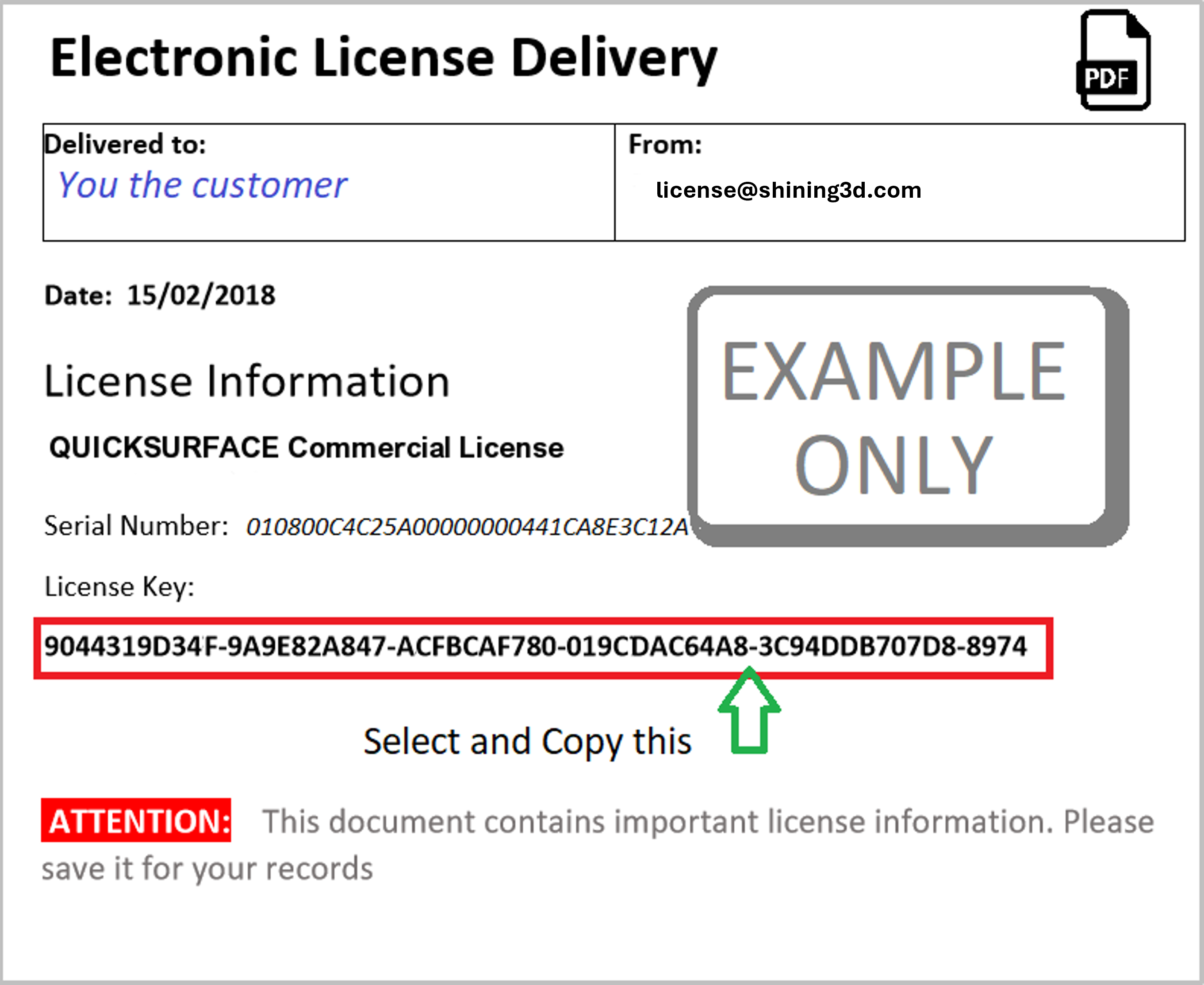
4. When you receive the license key (it may be in a personalised PDF file) copy the license key.
5. Start EXModel and select 'Settings Activate...' and enter the provided license key into the empty box.
Using Copy from the PDF and Paste here should prevent any typing errors.
Press Activate.
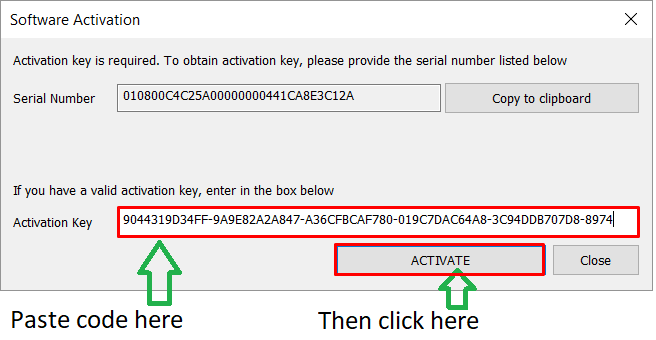
6. Restart the application for the changes to take effect.